Software
Intel Innovation Platform Framework: Fix & Remove Guide
Intel Innovation Platform Framework explained: what IPF does, the version mismatch fix, and whether it is safe to remove. See the steps that actually work.

If you opened Device Manager or your update history and spotted the Intel Innovation Platform Framework, you are not alone. It appears out of nowhere on most modern Intel laptops, sometimes triggers a crash, and Intel never really explains it in plain language. This guide does, and points you to the right software and platform tools to keep a fleet stable.
Quick answer
The Intel Innovation Platform Framework (Intel IPF) is a low-level driver layer that lets Intel software talk to your processor in a secure, standard way. It powers two features: Dynamic Tuning (power and thermal management) and Context Sensing (human-presence detection). You usually leave it alone, and when it misbehaves you update it through your laptop maker, not by deleting it.
Key takeaways
- IPF is a foundation layer, not an app you open. It supports Intel Dynamic Tuning Technology (DTT) and Context Sensing Technology (CST).
- It is preinstalled by OEMs like Dell, HP, and Lenovo on 12th Gen and newer chips, including Core Ultra.
- As of June 2026, Intel ships it inside the Intel Platform Performance Package, a single bundle of eight components that keeps versions in sync.
- The classic error is a version mismatch between DTT and IPF. The fix is updating drivers, ideally from your OEM.
- You can remove it, but on a laptop that changes thermal behavior, so think twice.
What the Intel Innovation Platform Framework actually does
Think of IPF as a translator that sits between Intel's higher-level features and the raw silicon. It establishes a standardized abstraction layer so applications can read platform data and adjust settings through one consistent interface.
That design matters for a practical reason. Hardware changes every processor generation, but IPF gives developers a stable, namespace-based API. The features built on top keep working without rewrites each time Intel ships a new chip.
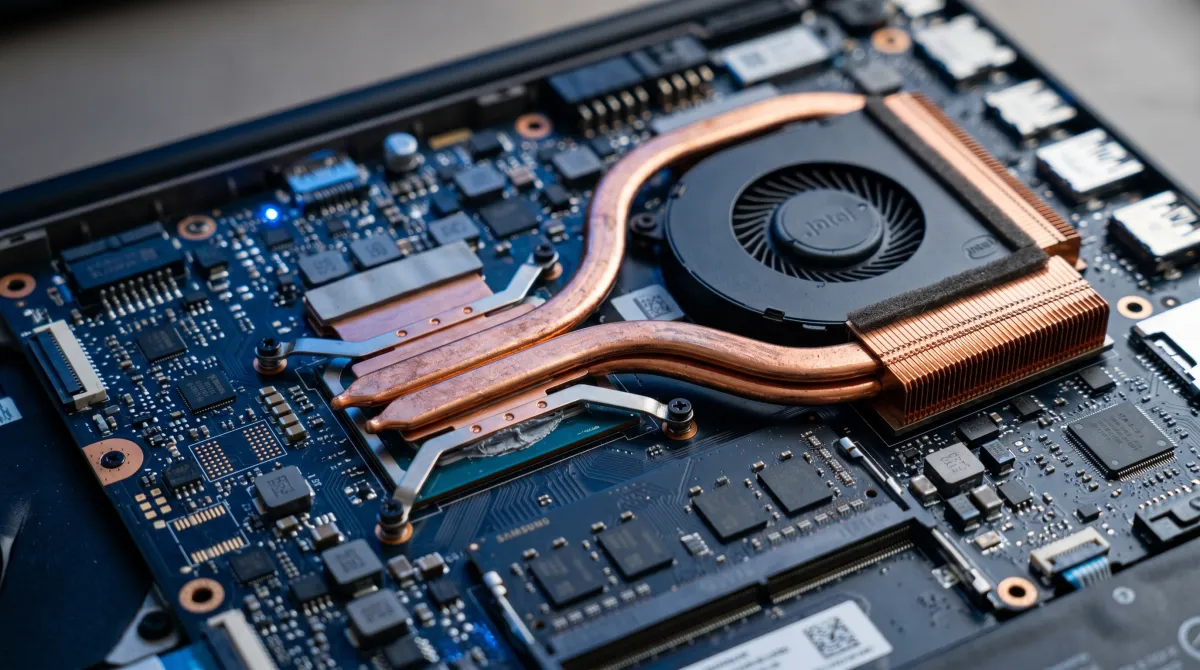
On its own, IPF does nothing you can see. Its value is enabling the two technologies below, which is why it installs quietly in the background and stays invisible until something breaks.
Intel Dynamic Tuning Technology: the thermal brain
Intel Dynamic Tuning Technology (DTT), sometimes called Dynamic Platform and Thermal Framework, is the most impactful piece riding on IPF. It manages power limits, fan curves, and heat in real time.
On a laptop, DTT is what keeps the chassis cool and quiet while squeezing better battery life out of the same hardware. It resolves fan noise, overheating, and the throttling that makes a machine feel sluggish under load.
Newer builds add workload-aware tuning, which uses on-chip telemetry to right-size power limits based on what you are doing. There is also battery-aware management that shifts behavior depending on charge level and whether you are plugged in.
The tradeoff is that DTT actively caps performance to protect thermals. Some power users remove it to unlock headroom, which can help on a beefy gaming laptop but risks louder fans and a hotter deck.
Intel Context Sensing Technology: presence detection
The second feature IPF supports is Context Sensing Technology (CST). It detects whether a human is sitting in front of the machine, then acts on that signal.
This is what enables Wake on Approach, where the screen lights up as you sit down, and Walk Away Lock, where the system secures itself when you leave. Both lean on a sensor plus the IPF layer to function reliably.
IPF is plumbing, not a faucet. You never use it directly, but everything from your fan noise to your auto-lock depends on it working quietly.
Which processors and systems use it
IPF targets modern Intel mobile and desktop processors. Coverage spans Alder Lake, Raptor Lake, Meteor Lake, Lunar Lake, Arrow Lake, and Panther Lake, which is to say 12th Gen onward, including the Core Ultra family.
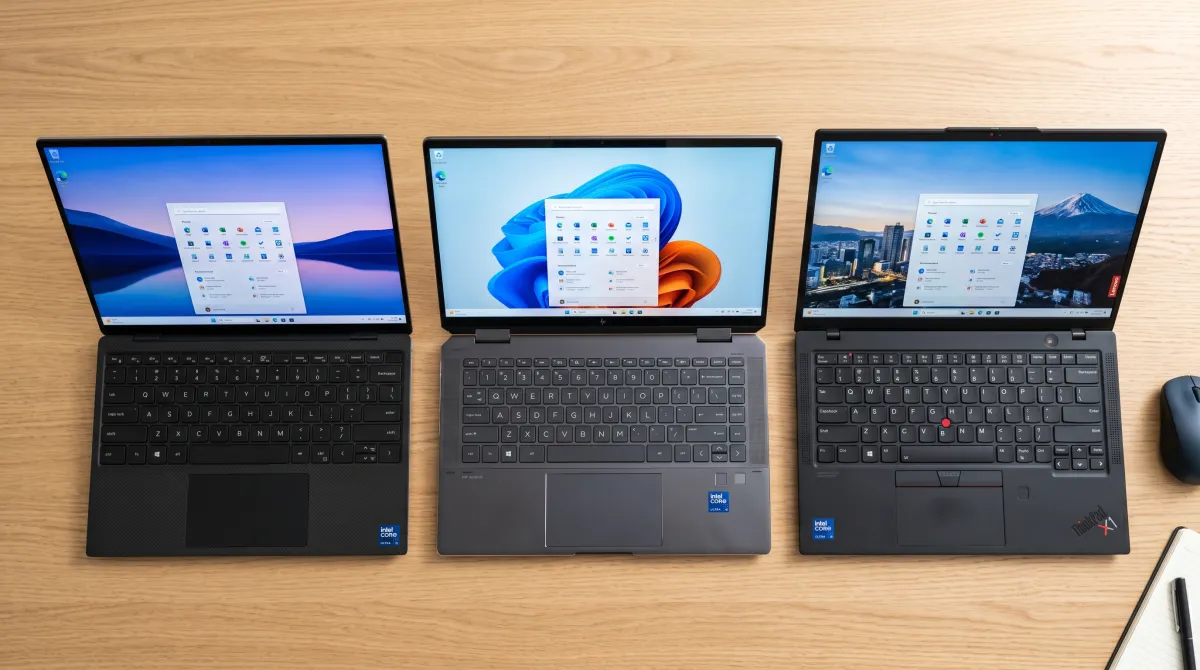
For context, Panther Lake ships as Core Ultra Series 3. It carries the newest IPF builds out of the box, so fresh laptops rarely hit version trouble at all.
One important nuance: driver versions are not universal. Intel's newest Download Center builds target only the recent Core Ultra chips. Older platforms need the matching older package from your OEM.
That is why Intel now bundles everything into the Intel Platform Performance Package. It groups IPF, the DTT driver, and the GPU telemetry providers into one coordinated release, eight components in total, so versions stay in sync rather than drifting apart.
| Component | Role | Visible to you? |
|---|---|---|
| Intel IPF | Secure abstraction layer between Intel software and the CPU | No, runs in background |
| Dynamic Tuning (DTT) | Power, thermal, and fan management | Indirectly, via heat and battery |
| Context Sensing (CST) | Human-presence features like Wake on Approach | Yes, as screen and lock behavior |
| Platform Performance Package | Bundle that keeps all the above in sync | No, appears in Windows Update |
The version mismatch error, explained
The single most common complaint reads like this: the DTT driver cannot load because the installed version of IPF is too old. The exact minimum changes by platform, for example IPF 2.2.10003.3 or later for Lunar Lake, and 2.2.10203.4 or later for Arrow Lake.
The cause is almost always an update race. Windows Update or an Intel utility pushed a newer DTT driver, but the matching IPF that your OEM signs off on has not arrived yet. The two pieces fall out of step.
Because these drivers are configured per machine, the cleanest fix is to grab the bundled package from your manufacturer's support page rather than mixing a generic Intel download with an OEM-tuned one.
BSOD on Core Ultra: what is happening
Some owners of newer chips, including the Core Ultra 7 265K, have hit blue screens traced to the Intel Innovation Platform Framework Processor Participant driver. Error logs often point to a failure loading the WUDFRd framework driver.
Intel's recommended path is not to abandon IPF. It is to uninstall the broken version and reinstall a clean, current one, after updating your BIOS so firmware and driver expectations line up.
How to fix or remove it safely
Start gentle, escalate only if needed. Here is the order that works in practice for a stuck or crashing IPF.
- Update BIOS first. Outdated firmware causes many IPF and DTT load failures. Get it from your laptop maker.
- Check the BIOS toggle. On Intel 800 series boards, the IPF configuration sits under Thermal Configuration in the Advanced menu and ships enabled by default.
- Reinstall via Device Manager. Find the IPF components under System Devices, right-click, choose Uninstall device, tick "Attempt to remove the driver," then install the latest package.
- Use pnputil if it keeps reinstalling wrong. Run
pnputil /enum-driversas admin, locateipf_cpu.infandipf_acpi.inf, then delete each withpnputil /delete-driver <name> /uninstallbefore rebooting. - Prefer the OEM build. Dell, HP, and Lenovo packages are tuned to your exact thermal profile.
Should you remove IPF entirely? On a desktop, the risk is low. On a laptop, you are also stripping out DTT's thermal management, which can mean louder fans and uncontrolled heat. Treat full removal as an advanced, reversible experiment, not a default.
If you run a small team and manage a fleet of these machines, standardizing your driver and update process saves hours of one-off troubleshooting. That same discipline is the difference between a managed stack and chaos, which is exactly where scale changes how you run your stack.
Pairing a clean driver baseline with the right security software for small business keeps endpoints both stable and protected.
Document the rollout itself with the right productivity tools for teams so nobody reinstalls the wrong driver twice.
Related guides
Frequently asked questions
Is the Intel Innovation Platform Framework safe to remove?
Yes, it is safe to uninstall, but with a caveat. On a laptop it manages thermals and power limits through Dynamic Tuning, so removing it changes how your machine cools itself. On a desktop the impact is smaller. Either way, Windows often reinstalls it on reboot.
Why does IPF keep installing itself?
It arrives through Windows Update and Intel utilities as part of the Platform Performance Package. To stop automatic reinstallation, you need registry or Group Policy changes, since a simple Device Manager uninstall usually gets reverted at the next restart.
What is the difference between IPF and DTT?
IPF is the foundation layer that lets software reach the processor. DTT is one feature built on top of it that handles power and thermal tuning. DTT depends on a compatible IPF version, which is why mismatches break it.
Does IPF affect performance?
Indirectly, yes. Through Dynamic Tuning it can cap CPU power to control heat and noise. Removing it may unlock more sustained performance on capable laptops, at the cost of higher temperatures and louder fans.
How do I fix the IPF version too old error?
Update your BIOS, then install the matching Platform Performance Package from your laptop manufacturer so DTT and IPF versions align. Avoid mixing a generic Intel Download Center driver with an OEM-tuned one, which is what usually causes the mismatch.